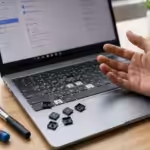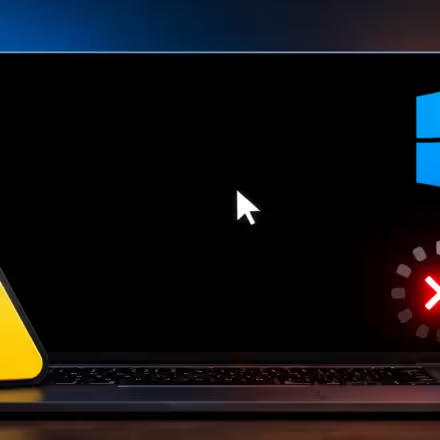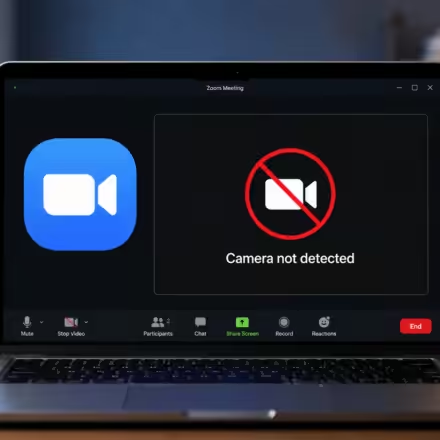

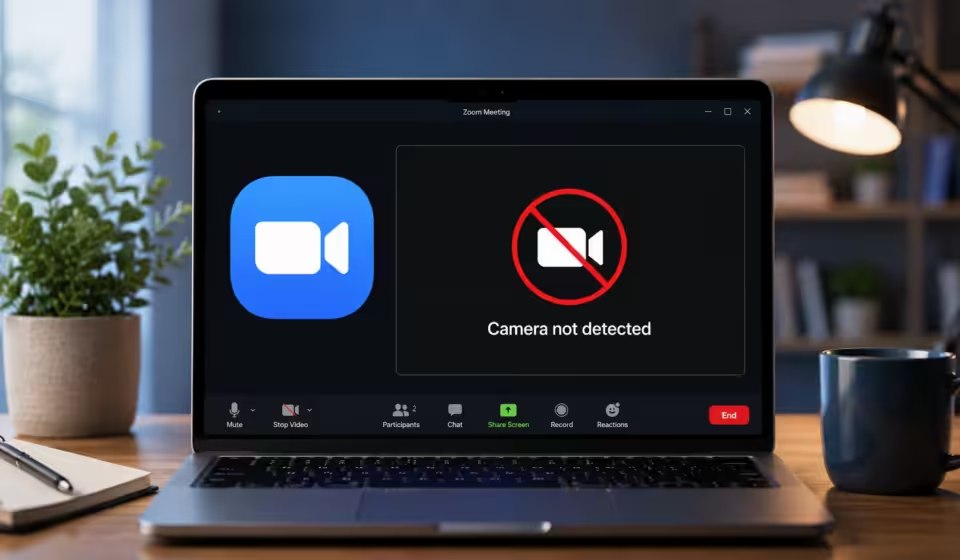

You click Start Video, and instead of your face, you get a black square. Or Zoom just tells you flat out that it can’t find a camera even though the same webcam was working fine yesterday, or is working right now in another app on the same laptop. It’s a lousy way to start a meeting, and on Windows 11 it happens more than it should.
Table Of Content
- Quick Fix Checklist
- Common Symptoms
- Why This Actually Happens
- Fix 1: Restart the PC
- Fix 2: Fully Restart Zoom
- Fix 3: Windows Camera Privacy Settings
- Fix 4: Test the Camera Outside of Zoom
- Fix 5: Pick the Right Camera Inside Zoom
- Fix 6: Close Whatever Else Is Using the Camera
- Fix 7: Update the Camera Driver
- Fix 8: Check for Windows Updates
- Fix 9: Run the Camera Troubleshooter
- Fix 10: External USB Webcam Issues
- Fix 11: Laptop-Specific Camera Settings
- Fix 12: Reinstall Zoom
- If Nothing Above Works
- FAQ
- Final Thoughts
Here’s the part that usually gets missed: it’s almost never the webcam itself. Windows 11 locks camera access down harder than any version before it, and that’s the root of most of these complaints. A permission gets flipped off during an update, another app quietly grabs the camera first, or Zoom is simply pointed at the wrong device. None of that requires a new webcam. It requires about five minutes and the right order of operations, which is what this guide is for.
Quick Fix Checklist
If you’re in a hurry, try these first. Most people are back on camera before they even get to the fourth one.
- ✓ Restart the PC not just Zoom
- ✓ Fully quit and reopen Zoom (from the system tray, not just the window)
- ✓ Check Windows camera privacy settings
- ✓ Test the camera in the Windows Camera app
- ✓ Confirm the right camera is selected inside Zoom
- ✓ Close anything else that might be using the camera
- ✓ Update the camera driver in Device Manager
If none of that fixes it, keep going the rest of this covers Windows Update, the built-in troubleshooter, USB webcams, laptop-specific settings, and what to do if it’s genuinely a hardware problem.
Common Symptoms
“Zoom camera not working” isn’t really one problem it’s several different ones that all look similar from the outside. Knowing which version you’ve got saves you from working through fixes that don’t apply.
| What you’re seeing | What’s probably going on |
| Black screen, no error message | Something else already has the camera open |
| “Cannot detect camera” / “No camera found” | A Windows privacy toggle is off, or the driver didn’t load |
| “Camera failed” | Driver conflict, or Zoom is pointed at a device that’s no longer connected |
| “Camera is in use by another application” | Teams, Skype, Discord, or a browser tab is holding it |
| Camera works in the Windows Camera app but not Zoom | Zoom-specific permission, or the wrong camera picked in Zoom’s settings |
| Video just won’t start at all | Zoom’s own app permission is blocked, or the install is corrupted |
Not sure which one you’ve got? Jump to testing in the Windows Camera app first it tells you in about ten seconds whether this is a Zoom problem or a Windows problem.
Why This Actually Happens
There’s no single villain here. In practice, it’s almost always one of these:
Windows 11 treats camera access as a permission, not a given every app has to be granted it individually, and that permission has a habit of getting reset by feature updates. A driver can go stale or get corrupted, especially right after a Windows update swaps files around.
Only one app can usually hold the camera at a time, so if Teams is sitting in your system tray, Zoom might simply be locked out. On machines with more than one camera, Zoom can end up pointed at the wrong one. External webcams add a whole extra failure point in the USB connection itself.
Some antivirus suites block webcam access from apps they don’t recognize, by default, without telling you. Zoom’s own local settings can get corrupted after a botched update. And every so often, Windows Update itself is the culprit Microsoft’s own documentation acknowledges that a driver regression after an update is a known cause of camera problems, not a rare edge case.
The upshot: if the camera fails everywhere, not just in Zoom, look at drivers and hardware first. If it only fails in Zoom, the problem is almost certainly permissions or a wrong device selection.
Fix 1: Restart the PC
Yes, really start here. It sounds too simple to matter, but a full restart clears background processes that might be quietly holding onto the camera, and it finishes off any driver load that got interrupted. Closing and reopening apps doesn’t always do this; a reboot does.
Save your work, then go to Start > Power > Restart not Shut Down, and not just signing out. Once you’re back, open Zoom and test the camera in a test call before you rely on it for a real one.
If the camera comes back but drops again after the laptop sleeps and wakes a few times, that’s not really “fixed” it’s pointing at a driver or power-management issue, which Fix 7 and Fix 10 deal with. If restarting didn’t change anything at all, move on.
Fix 2: Fully Restart Zoom
Closing the Zoom window doesn’t actually close Zoom it keeps running in the system tray by default. If that background process is what’s holding the camera, a real restart of the app can clear it up without rebooting the whole machine.
Right-click the Zoom icon near the clock and choose Quit. Open Task Manager (Ctrl+Shift+Esc) and double-check there’s no Zoom.exe still sitting under Details. Then relaunch Zoom and test again.
This one fixes it more often than you’d think, especially for people who leave Zoom minimized for hours between calls.
Fix 3: Windows Camera Privacy Settings
This is the one. If you only try one fix from this whole list, make it this one it’s behind the majority of “camera not detected” errors on Windows 11, and it’s easy to check even if you’re pretty sure you already allowed access, because Windows updates reset it more often than people realize.
Press Win + I, then go to Privacy & security > Camera. (On some builds this has moved to Bluetooth & devices > Cameras instead if you don’t see it in the first spot, check there.) Make sure Camera access is on. Scroll down and confirm Let apps access your camera is on.
Then scroll a bit further there’s a separate toggle for Let desktop apps access your camera, and this is the one almost everyone misses, because it’s easy to assume the first toggle covers everything. Zoom is a desktop app, so it needs this one specifically turned on. Flip it, restart Zoom, and try again.
If you landed on the newer Cameras page instead, check under Disabled cameras if your webcam shows up there, select it and hit Enable.
One thing worth knowing: on a managed work laptop, none of this may be under your control. IT departments sometimes restrict camera access at the policy level, and no amount of toggling settings on your end will override that. If you suspect that’s the case, it’s worth a quick message to IT before you spend another twenty minutes on this.
Fix 4: Test the Camera Outside of Zoom
Before chasing anything Zoom-specific, it’s worth figuring out whether the problem is really about Zoom or about Windows itself. This takes thirty seconds and saves you from troubleshooting the wrong thing.
Open the Start menu, type Camera, and launch the built-in Camera app. If you get a live picture, good news your webcam and driver are both fine, and the problem is isolated to Zoom’s own settings or its specific permission.
If the Camera app is also a black screen, or throws an error, the issue is at the driver or hardware level, and you’ll want to skip ahead to the driver fix. If the app won’t even open, something else is probably still holding the camera go back and double-check Fix 2 and the next fix below.
Fix 5: Pick the Right Camera Inside Zoom
If your laptop has more than one video source a built-in webcam plus a USB camera, or a leftover virtual camera driver from something like OBS Zoom can quietly default to the wrong one. You’ll get a black screen even though a perfectly good camera is sitting right there, unused.
In Zoom, click the gear icon for Settings, then Video on the left. (This section used to be called “Camera” a recent Zoom update renamed it and split camera controls from the appearance filters.) Check the dropdown under Camera and make sure it’s pointing at the right device. If your webcam isn’t even in that list, that’s not a Zoom problem anymore it’s a driver or Windows issue, so jump to the driver fix below.
You can also swap cameras mid-meeting without digging through settings: click the small arrow next to the Start Video button on the toolbar and pick a different device from there.
Fix 6: Close Whatever Else Is Using the Camera
Windows generally only lets one app touch the camera at a time. If Teams, Skype, Discord, or a browser tab with an open video call is running quietly in the background, Zoom gets shut out and it usually won’t tell you why, it’ll just show a black screen.
Quit Zoom completely, open Task Manager, and end anything that might be using the camera: Teams, Skype, Discord, OBS, any browser window with an active meeting tab. Reopen Zoom and test again.
For anyone who keeps Teams running all day for work chat, this is very often the entire fix not a small percentage of the time, either.
Fix 7: Update the Camera Driver
A stale or corrupted driver is the most common hardware-adjacent cause of camera problems, and it shows up disproportionately right after a Windows feature update, since those updates sometimes touch driver files without cleanly replacing them.
Right-click Start, open Device Manager, and expand Cameras (on some laptops, integrated webcams sit under Imaging devices instead). Right-click your webcam, choose Update driver > Search automatically for drivers.
If nothing turns up, go back in, choose Uninstall device, check the box to remove the driver if it’s offered, and restart Windows will reinstall a fresh driver on its own during boot. If that still doesn’t stick, it’s worth grabbing the driver directly from your laptop maker’s support page instead of relying on Windows to find it.
If the camera doesn’t show up in Device Manager at all, or has a yellow warning icon next to it, that’s a stronger sign of a real driver or hardware conflict not just a settings issue.
Fix 8: Check for Windows Updates
Microsoft ships fixes for camera-related bugs through Windows Update fairly regularly, and ironically, an update that’s stuck partway through downloading can itself interfere with hardware access in the meantime.
Go to Settings > Windows Update, click Check for updates, and install everything pending including anything listed under Advanced options > Optional updates, since driver updates often hide there. Restart once it’s done, then retest.
This won’t always be the fix by itself, but skipping it means you might be chasing a bug that Microsoft already patched.
Fix 9: Run the Camera Troubleshooter
Windows 11 has an automated troubleshooter built for exactly this, and it’s actually Microsoft’s own recommended starting point checking permissions, driver status, and common conflicts in one pass rather than making you dig through each manually.
Open the Get Help app from the Start menu and search “camera troubleshooter” that’s the current path on Windows 11. On some builds you can also get there through Settings > Privacy & security > Camera (or the Bluetooth & devices > Cameras page), by selecting your camera and choosing Troubleshoot if that option shows up. Either way, let it run and apply whatever it suggests.
It catches a few edge cases the manual steps above don’t, mostly around driver registration issues that are annoying to fix by hand.
Fix 10: External USB Webcam Issues
If you’re on an external webcam rather than a built-in laptop camera, there’s a whole extra point of failure the fixes above don’t cover: the physical connection. A loose port, an underpowered hub, or a marginal cable can produce symptoms that look exactly like a software bug.
Plug the webcam directly into a port on the laptop or PC itself not a hub, dock, or a monitor’s USB pass-through, all of which can supply inconsistent power. Try a different port if you can, ideally a USB 3.0 one (usually blue inside). If the cable detaches, swap it; cables fail more often than the camera hardware does. And if none of that helps, unplug the whole thing, wait ten seconds, and plug it back in that forces Windows to re-detect it from scratch.
Cheap webcams and long cable runs (much past six feet without a powered extension) are especially prone to dropping out mid-call, so this is worth checking even if it seems too basic to be the cause.
Fix 11: Laptop-Specific Camera Settings
Here’s one that trips people up constantly: several laptop makers install their own software layer that controls the webcam separately from Windows. You can have every Windows setting exactly right and still have a dead camera because of this.
| Brand | What to check |
| Dell | Dell Optimizer or Dell Peripheral Manager can control camera access on their own check the Webcam or Audio & Video tab. |
| HP | HP Wolf Security or HP Privacy Camera software can disable the webcam at a hardware level. Also look for a physical kill switch or a function key (often F9, sometimes with a camera icon). |
| Lenovo | ThinkPads and IdeaPads often have a physical shutter, plus a software toggle in Lenovo Vantage under Device Settings > Camera. Either one alone can block it. |
| ASUS | Check MyASUS > Customization > Webcam. |
| Acer | PredatorSense or Acer Care Center sometimes has its own webcam privacy toggle. |
| MSI | MSI Center can include a separate camera enable/disable switch under System Control. |
Before anything else here, physically check for a privacy shutter or slider over the lens, and glance at your function keys for a camera icon (often paired with Fn). A closed shutter produces the exact same black screen as a software bug, and it’s the single most overlooked cause on this whole list no Windows setting will ever fix a physically closed shutter.
Fix 12: Reinstall Zoom
If Zoom’s local configuration has gotten corrupted which happens more than you’d expect after an interrupted update a clean reinstall clears it out completely without touching your account or cloud recordings.
Sign out, quit Zoom, then go to Settings > Apps > Installed apps and uninstall it. Grab the latest installer from zoom.us/download, install it fresh, sign back in, and grant camera and microphone access again when Windows asks.
This also quietly fixes an odd edge case: if Zoom was installed before a Windows camera-privacy update rolled out, it sometimes never picks up the newer permission prompts on its own. A reinstall forces that handshake to happen again.
If Nothing Above Works
Worked through all twelve and still staring at a black screen? At this point it’s worth separating hardware from software directly rather than guessing further.
Try the webcam on a different computer if it doesn’t work there either, the camera itself is probably the problem. If you have access to a second webcam, try that on your PC instead; if it works fine, your original camera or its driver is the issue, not your Windows setup.
Most laptop manufacturers also build in hardware diagnostics, usually accessible by pressing a specific key during boot (F12 is common on Dell and HP), which can test the camera at a lower level than Windows can see. If those diagnostics flag a fault, that’s a manufacturer repair conversation, not a settings one. And if the issue seems tied specifically to the Zoom client rather than Windows, Zoom’s own support article on camera issues is worth a look, or a direct ticket to their support team.
At that point you’re not chasing a quick fix anymore you’re dealing with either a genuine hardware fault or something specific enough to need a manufacturer or Zoom support ticket.
FAQ
Why does Zoom say “Cannot Detect Camera” even though my webcam works in other apps? Almost always, Windows is blocking Zoom specifically, not the camera in general. Check Settings > Privacy & security > Camera and make sure “Let desktop apps access your camera” is on it’s separate from the general app toggle and the one people miss most.
How do I fix a black screen in Zoom on Windows 11? A black screen with no error usually means something else already has the camera close Teams, Skype, Discord, and any browser tabs with live video, then restart Zoom. Still black? Update the camera driver through Device Manager next.
Do I need to reinstall Zoom to fix camera problems? Rarely, honestly. It’s a reasonable last resort if Zoom’s own settings have gotten corrupted, but permissions, drivers, and app conflicts explain the vast majority of cases without ever needing a reinstall.
Why does my external USB webcam disconnect during Zoom calls? That’s almost always a power or connection issue rather than a software bug. Plug straight into a laptop or motherboard port instead of a hub or dock, and use USB 3.0 if the webcam supports it.
Does a laptop’s physical camera switch or shutter actually affect Zoom? Yes, completely. Lenovo, HP, and others build in a physical or software shutter that overrides Windows entirely. If the camera doesn’t show up anywhere not even in the Windows Camera app check for a physical switch before touching any software setting.
Can antivirus software block Zoom’s camera access? Yes. A lot of antivirus suites include webcam protection that blocks apps it doesn’t recognize, by default, with no notification. Check your antivirus’s privacy or webcam settings and explicitly allow Zoom.
Why does my camera work in the Windows Camera app but not in Zoom? That’s a strong sign it’s a Zoom-specific permission, or the wrong camera picked in Zoom’s Video settings not a driver or hardware issue. Start with the privacy settings and camera selection fixes above.
Is this really a Windows 11 thing, or does it happen on Windows 10 too? The root causes permissions, drivers, app conflicts exist on both. But Windows 11’s stricter per-app camera permissions make the “Windows is quietly blocking the app” scenario noticeably more common than it ever was on Windows 10.
Can a Windows update genuinely break a camera that was working fine the day before? Yes, and it’s not rare. Microsoft’s own troubleshooting documentation points to missing or outdated drivers after an update as a known, documented cause which is exactly why checking Windows Update belongs in a full troubleshooting pass, not as an afterthought.
Final Thoughts
Nine times out of ten, this comes down to three things: a permission Windows quietly turned off, another app already holding the camera, or Zoom pointed at the wrong device. Those three checks alone the privacy settings, the camera selection, and closing conflicting apps solve most of the cases people write in about, and none of them take more than a couple of minutes.
If you’ve genuinely worked through everything here and it’s still not working, stop guessing and isolate the problem directly: try the webcam on another computer, or try a different webcam on yours. That tells you in under a minute whether you’re dealing with software or something that actually needs a repair.
Once it’s working again, a little upkeep keeps it that way install Windows and driver updates when they show up instead of putting them off, keep Zoom itself current, and get in the habit of actually quitting Teams or Skype instead of leaving them running in the background. If you run into the same kind of issue elsewhere, our guides on Windows 11 camera problems in general, Zoom microphone troubleshooting, and Microsoft Teams camera issues cover a lot of the same ground.