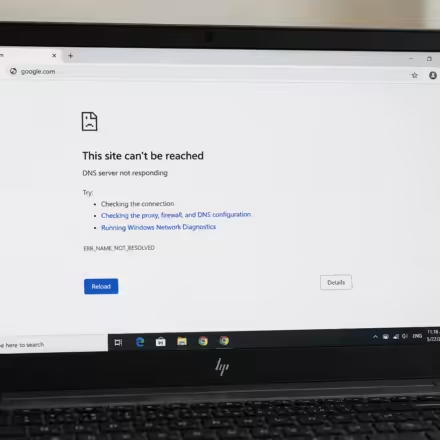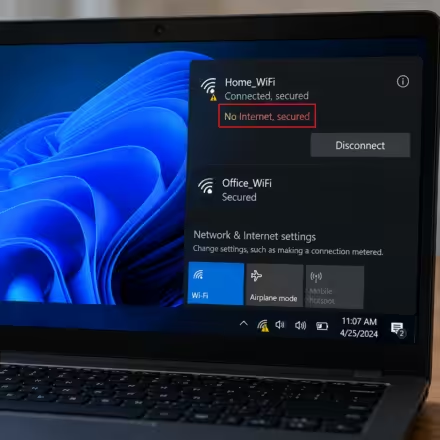

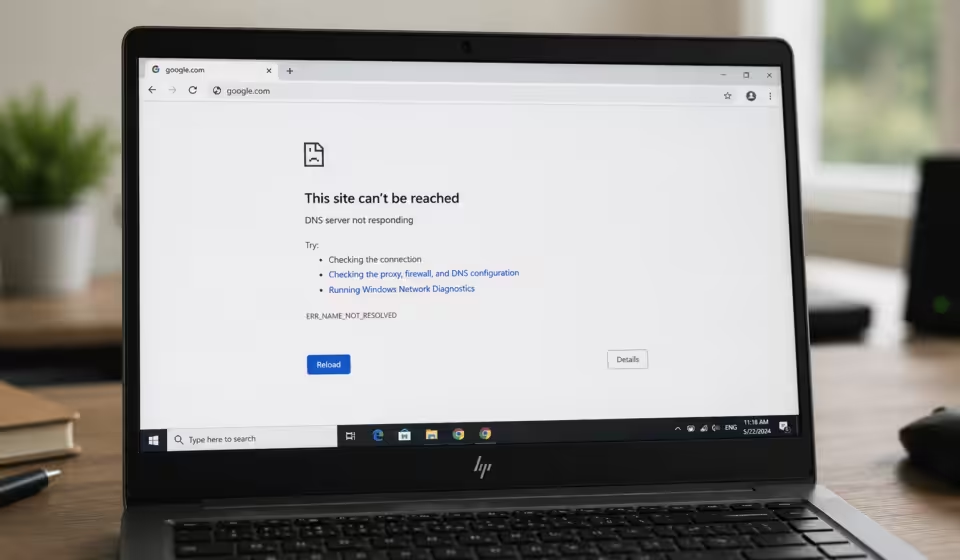

Everything looks fine on your laptop or pc Wi-Fi bars, the little globe icon says you’re connected on your wi-fi network, and then nothing loads on your browser. Chrome, Edge, Firefox, doesn’t matter which one you open, they all give you the same error: “DNS server not responding.”
Table Of Content
- Why This Happens
- Match Your Situation to a Fix
- 1. Restart Your Router and Modem
- 2. Rule Out a Single Device or Browser
- 3. Let the Network Troubleshooter Take a Swing
- 4. Flush the DNS Cache
- 5. Point Your PC at a Different DNS Server
- 6. Restart the DNS Client Service
- 7. Turn Off Your Antivirus or Firewall for a Minute
- 8. Update the Network Driver
- 9. Reset Winsock and TCP/IP
- 10. Turn Off IPv6, Just to Test
- 11. Disable Fast Startup
- 12. Check Your VPN or Proxy
- 13. Uninstall and Reinstall the Network Adapter
- 14. Do a Full Network Reset
- 15. Check for Malware and a Tampered Hosts File
- A Few Habits That Keep This From Coming Back
- When It’s Time to Call Your ISP
- Frequently Asked Questions
- What causes “DNS server not responding” in Windows 11?
- Is switching to Google or Cloudflare DNS actually safe?
- Will a network reset wipe my files?
- How do I know if it’s my router or my ISP?
This is one of the most common complaints on Windows 11, and there’s a good reason it’s so confusing: your internet connection is usually fine. The problem is DNS, the system that turns a web address like repaircomet.com into the numbers your computer actually uses to find the site. When that translation breaks, everything else can look perfectly normal and pages still won’t load.
I’ve ordered the 15 fixes below roughly by how often they solve the problem, so start at the top. Most people are back online within the first five. None of these need any real technical background, and outside of a couple that involve a restart, most take less than a minute.
Why This Happens
A handful of things cause this error, and most of them have nothing to do with your internet plan:
- Your router or modem is due for a restart
- Your ISP’s DNS servers are down or overloaded (it happens more than they’ll admit)
- A corrupted DNS cache on your own PC
- An outdated network driver
- A VPN, proxy, or antivirus tool getting in the way of DNS traffic
- Network settings that got scrambled after a Windows update
Quick note before you start: this error is not the same thing as “no internet access.” If your Wi-Fi icon has a red X, or your browser says it can’t connect at all, that’s a different problem, and none of the fixes below will help. “DNS server not responding” specifically means your connection works but the address lookup doesn’t. That’s a much narrower issue, and a much easier one to fix.
It’s also worth knowing this isn’t unique to Windows 11. Windows 10 users see the exact same error message, and the underlying causes are identical. Microsoft hasn’t changed how DNS resolution works at a fundamental level between the two, just where some of the settings live in the interface. If you’re helping someone troubleshoot an older machine, most of the steps below still apply almost word for word.
Match Your Situation to a Fix
Don’t feel like reading all 15? Here’s a shortcut.
- Error showed up right after a power blip or router hiccup: start with Fix 1
- Only one PC is affected, everything else on the network is fine: jump to Fix 4 or Fix 9
- Started right after you installed or updated a VPN: go to Fix 12
- Only happens in one browser: check Fix 2
- Started right after a Windows Update: try Fix 8, then Fix 9
- You’ve tried everything and nothing’s worked: Fix 14 is your clean slate
1. Restart Your Router and Modem
Old advice, but it’s old advice for a reason. Your router keeps its own DNS cache, and that cache gets stuck sometimes, same as your PC’s.
Unplug the modem and router. Actually wait 30 seconds, don’t just yank and replug, some routers need that time to clear their memory properly. Power the modem back on first, let its lights settle, then plug in the router. Give it another minute before you test anything.
Got a combo modem-router unit? Same idea, just the one device.
If you’re on a mesh system with multiple nodes, restart the main router first and give it a minute to fully come back before you touch the satellite nodes. Restarting them all at once tends to confuse the mesh handshake and makes things worse for a few minutes, not better.
2. Rule Out a Single Device or Browser
Before touching any settings, figure out whether this is really a Windows 11 problem. Grab your phone, connect to the same Wi-Fi, try loading a site. If it fails there too, this isn’t your PC, it’s your router or your ISP, and step 1 (or a call to your provider) is where you should be spending your time.
If your phone’s fine but the PC isn’t, try a second browser. Chrome acting up? Open Edge. A DNS error that only shows in one browser usually means a stuck browser cache or a bad extension, not a system-wide issue.
Worth mentioning: some browsers, Chrome especially, run their own DNS-over-HTTPS resolver independent of Windows. If you’ve ever changed that setting under Chrome’s Privacy and Security menu, it can occasionally conflict with what you set at the system level in Fix 5. Not the most common cause, but if you’ve already worked through the rest of this list and you’re still stuck, it’s worth checking.
3. Let the Network Troubleshooter Take a Swing
Windows 11’s built-in troubleshooter catches more of these than people give it credit for. Settings > System > Troubleshoot > Other troubleshooters, then run Network & Internet.
It checks your adapter, your IP setup, and DNS resolution, and fixes what it can automatically. Even when it can’t solve the problem outright, the details it shows you are a good clue for which fix to try next.
4. Flush the DNS Cache
Windows caches DNS lookups so pages load faster, but that cache holds onto bad entries after a network change, a VPN disconnect, or an ISP hiccup. Clearing it forces a fresh lookup for everything.
Right-click Start, open Terminal (Admin), and run these one line at a time:
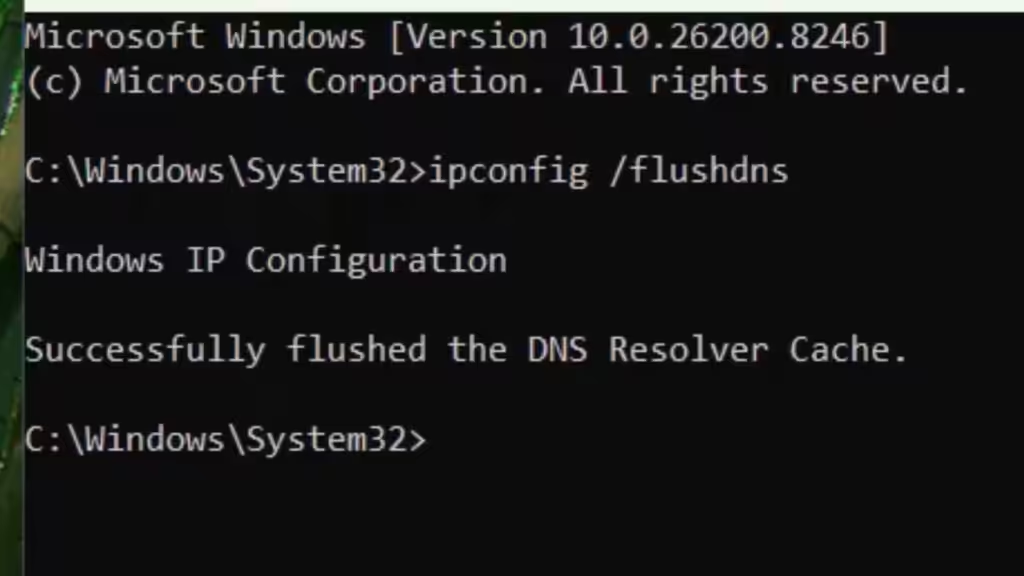
| ipconfig /flushdns ipconfig /release ipconfig /renew |
First command wipes the cache. Second drops your current IP. Third grabs a new one from your router. You’ll get a confirmation after each. Close the window and try a site again.
5. Point Your PC at a Different DNS Server
If your ISP’s DNS is slow or having a bad day, switching to a public provider like Cloudflare or Google usually fixes it on the spot, and it tends to make browsing feel a bit snappier afterward too.
Windows key + I, Network & Internet, click your active connection, Hardware Properties, then Edit next to DNS server assignment. Switch from Automatic (DHCP) to Manual, turn on IPv4, and drop in your preferred addresses.
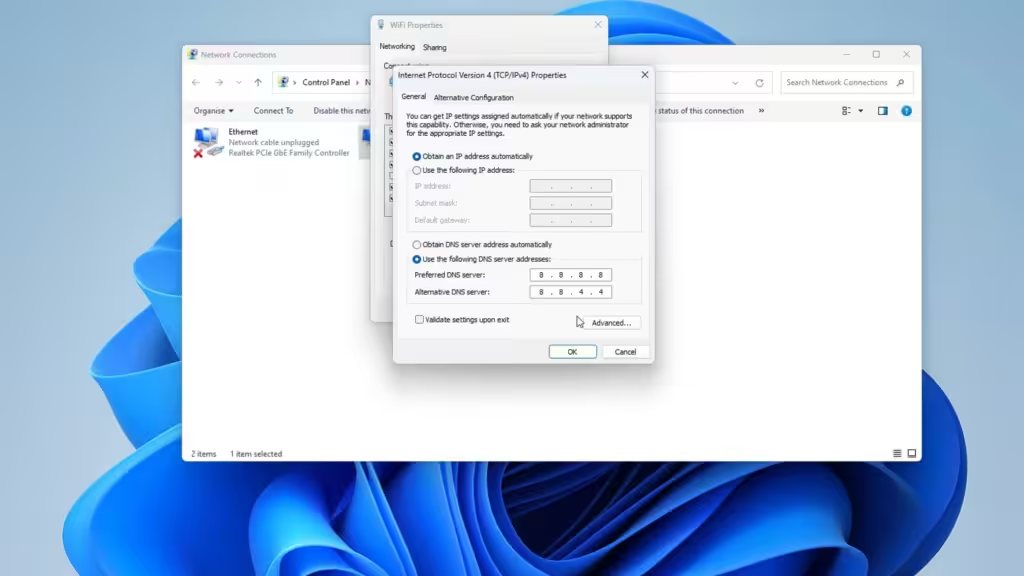
A few of the free options worth knowing:
| Provider | Preferred DNS | Alternate DNS | Notable For |
| Google Public DNS | 8.8.8.8 | 8.8.4.4 | Speed and reliability |
| Cloudflare | 1.1.1.1 | 1.0.0.1 | Privacy-focused, no logging |
| Quad9 | 9.9.9.9 | 149.112.112.112 | Built-in malware blocking |
| OpenDNS | 208.67.222.222 | 208.67.220.220 | Family filtering options |
If you just want something fast and private, go with Cloudflare. If you’d rather have some malware protection baked into your DNS lookups, Quad9 is the better pick. Save it, restart the browser, test again.
One thing people miss: if you’re on a router you don’t fully control, like at a rental or shared apartment, setting DNS at the PC level (like above) is the only option you actually have. If it’s your own router, you can set it there instead and it’ll apply to every device on the network automatically, which saves you doing this same fix on your phone, laptop, and smart TV separately.
6. Restart the DNS Client Service
DNS resolution runs through a Windows background service called DNS Client. When it hangs, your PC can’t look up a single address until it’s kicked back into gear.
Windows key + R, type services.msc, and hit Enter. Find DNS Client in the list, right-click, Restart. If Restart is grayed out, Stop it, wait a few seconds, then Start it again.
This service is supposed to run automatically. Finding it stopped is a pretty good sign you’ve found your problem.
7. Turn Off Your Antivirus or Firewall for a Minute
Security software loves to insert itself into DNS traffic as part of its “web protection,” and an out-of-date version can end up blocking the very responses it’s supposed to let through.
Pause real-time protection or the firewall from your antivirus’s system tray icon, most let you do this for 10 or 15 minutes. Test again. If the error vanishes, look for a web shield or DNS protection setting in your antivirus and either update the software or adjust it. Turn protection back on once you’re done testing, obviously.
8. Update the Network Driver
An old network driver is one of the sneakier causes here, especially right after a Windows update changes how the OS talks to your hardware.
Right-click Start, Device Manager, expand Network adapters, right-click yours, Update driver, then “Search automatically for drivers.” For a driver that’s actually current, skip Windows Update and go straight to the manufacturer’s site instead, Intel, Realtek, and Killer are the usual names, and download it directly.
9. Reset Winsock and TCP/IP
Winsock handles network traffic for every app on your PC, and it picks up corruption over time from software installs, security tools, and failed updates. A reset clears out problems that survive a plain DNS flush.
Open an admin Command Prompt and run these one at a time:
| netsh winsock reset netsh int ip reset ipconfig /flushdns |
Restart afterward. The Winsock reset doesn’t fully kick in until you reboot. This is the fix that solves it for a lot of people after nothing else has, and it’s usually because something, a VPN that was uninstalled badly, an old antivirus, a game with anti-cheat software, left behind a broken network layer that a simple flush can’t touch.
10. Turn Off IPv6, Just to Test
Windows 11 runs IPv6 alongside the older IPv4 by default. Problem is, plenty of routers and ISPs still don’t handle IPv6 cleanly, and that mismatch can break DNS lookups even while your IPv4 connection works fine.
Search “View network connections,” right-click your adapter, Properties, uncheck “Internet Protocol Version 6 (TCP/IPv6).” Restart and test. If that fixes it, your router or ISP has an IPv6 problem worth flagging to them, not something you need to keep working around forever.
11. Disable Fast Startup
Fast Startup shaves a few seconds off your boot time by saving parts of your session to a hibernation file instead of doing a real shutdown. Handy, except it can also carry a broken network state right through a restart, which means your “reboot” never actually resets anything.
Search “Choose what the power buttons do,” click “Change settings that are currently unavailable,” scroll down, uncheck “Turn on fast startup (recommended).” Save it, then do a full shutdown, not a restart, and power back on.
12. Check Your VPN or Proxy
VPNs and proxies both reroute DNS traffic, and if either one is misbehaving or mid-update, it can block DNS resolution entirely while your internet connection looks perfectly healthy.
Running a VPN? Disconnect it fully and test. If that clears it, look for a DNS option inside the VPN app, or just restart the app and reconnect. For proxy settings, go to Network & Internet > Proxy and make sure “Use a proxy server” is off unless you actually need it.
13. Uninstall and Reinstall the Network Adapter
If updating the driver in Fix 8 didn’t get you anywhere, wiping the adapter and letting Windows rebuild it from scratch clears out leftover corruption an update alone won’t touch.
Device Manager > Network adapters > right-click yours > Uninstall device. Tick “Attempt to remove the driver for this device” if it’s offered. Confirm, restart. Windows finds the hardware and reinstalls a clean driver on its own during boot.
14. Do a Full Network Reset
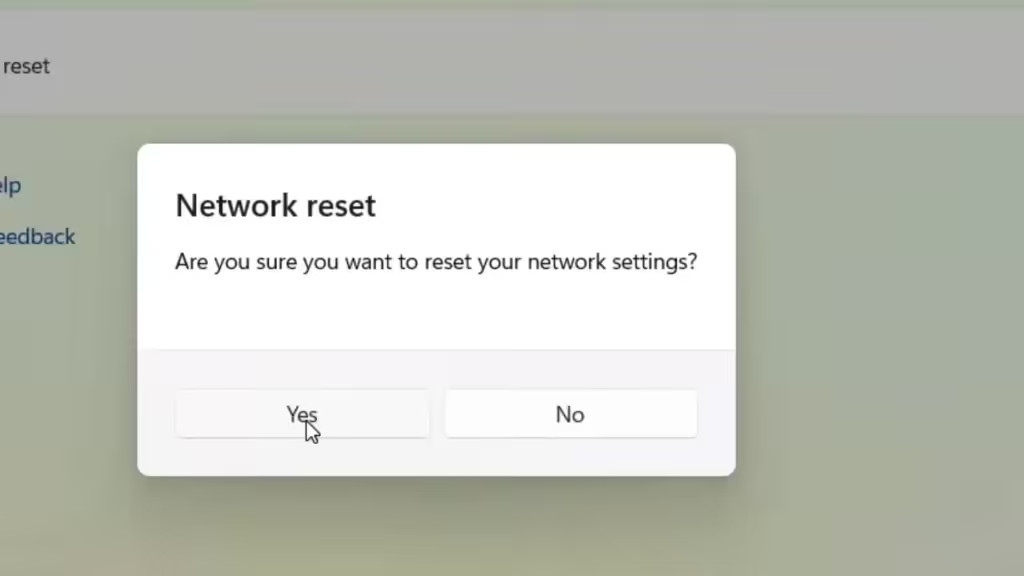
When nothing above has worked, Windows 11’s network reset wipes every adapter and reinstalls them at default settings. Think of it as the nuclear option, so save it for last.
Settings > Network & Internet > Advanced network settings > Network reset > Reset now. Your PC restarts on its own. You’ll need to reconnect to Wi-Fi and re-enter passwords afterward, and anything custom you’d set (like the DNS servers from Fix 5) gets wiped too.
Write down your Wi-Fi password before you do this if it’s not saved anywhere else. It sounds obvious until you’re staring at a login screen with no way to look it up because the one device that had it saved is the one you just reset.
15. Check for Malware and a Tampered Hosts File
Rare compared to everything else on this list, but some malware deliberately messes with DNS to reroute your browsing, and a DNS server that suddenly stops responding is one of the symptoms.
Run a full scan, Windows Security under Privacy & Security, or a trusted third-party tool. Then check your hosts file: open Notepad as administrator, go to C:\Windows\System32\drivers\etc\hosts. A clean file has nearly every line starting with a #. Anything without one that you don’t recognize should go. Save, restart.
If you do find something, don’t stop there. Go back and redo Fix 5 and Fix 9, malware that hijacks DNS often leaves your settings pointed somewhere bad even after you’ve removed it. Confirm you’re back on your router’s default DNS or a trusted public one before calling it fixed.
A Few Habits That Keep This From Coming Back
Once you’re online again, a couple of small habits go a long way. Update your router’s firmware every so often. It’s easy to forget this exists, but old firmware quietly causes a lot of the DNS weirdness people run into, and manufacturers do patch it.
Stick with the public DNS you set in Fix 5 instead of switching back to your ISP’s default. ISP servers see more regional outages and get overloaded during peak hours, which is exactly what tends to trigger this error to begin with.
Check your network driver every few months, particularly after a big Windows feature update. Drivers occasionally lag behind and cause exactly this kind of trouble.
And don’t run two VPNs or two antivirus tools at once. Both trying to manage DNS traffic at the same time is a classic, entirely avoidable way to end up right back here. If you tried a VPN or security app and didn’t keep it, actually uninstall it rather than just turning it off, a disabled app can still leave its network drivers installed and causing trouble months later.
None of this is a guarantee you’ll never see the error again. Networks are messy, ISPs have bad nights, and routers age out eventually. But these four habits knock out most of the repeat offenders, and the rest you’ll now know exactly how to handle.
When It’s Time to Call Your ISP
Worked through all 15 and still stuck? At this point the problem is almost certainly on your provider’s end, especially if other devices on the network show the same error. Call support and be specific: say you’re seeing DNS resolution failures, not just “the internet’s down.” That detail alone will save you ten minutes of back and forth with their script.
Check their outage status page or social accounts first if you can. A lot of providers post real-time updates, and you might find out the fix is already underway before you even pick up the phone.
For what it’s worth, the fault sits with the ISP more often than people expect. Regional DNS infrastructure does go down, sometimes for an hour, sometimes for most of a day, and there’s genuinely nothing on your end that would have prevented it. If you’ve worked through this whole list and the problem clears up on its own a few hours later without you touching anything else, that’s almost certainly what happened.
Frequently Asked Questions
What causes “DNS server not responding” in Windows 11?
Usually a temporary hiccup with your router, your ISP’s DNS servers, or a corrupted DNS cache on your own PC. Outdated network drivers, VPNs, and antivirus software can trigger the same error too.
Is switching to Google or Cloudflare DNS actually safe?
Yes. Both are free, heavily used services that tend to be faster and more dependable than a lot of ISP-provided DNS. Cloudflare’s main selling point is that it doesn’t log your browsing for ad purposes.
Will a network reset wipe my files?
No. It only touches network adapters and their settings, not your files, apps, or programs. It will remove saved Wi-Fi passwords and any custom network setup, so you’ll need to redo those.
How do I know if it’s my router or my ISP?
Restart the router first. If the error comes right back and other devices on the network have it too, that’s your ISP, not something fixable from your end.