

You can sea on your pc Wi-Fi icon shows full bars, but nothing loads on your browser. You refresh your browser, you wait and, refresh again, still nothing. I get this issue more than almost any other network issue, and it trips people up for a simple reason: it doesn’t look like a Wi-Fi problem.
Table Of Content
- My Quick Answer
- What’s Actually Happening
- Fix Priority Table
- 1. Restart the Router and Modem, Properly
- 2. Make Sure It’s Not Just Your ISP
- 3. Forget the Network and Reconnect
- 4. Actually Run the Network Troubleshooter
- 5. Flush DNS and Grab a Fresh IP Address
- 6. Update or Roll Back the Wi-Fi Driver
- 7. Try Turning Off IPv6
- 8. Check for an IP Address Conflict
- 9. Turn Off Your VPN, Proxy, or Firewall for a Minute
- 10. Reset Your Network Settings Completely
- 11. Check for MAC Address Filtering
- 12. Rule Out Malware or a Trigger-Happy Security Tool
- 13. Test It On a Second Device
- 14. When to Stop and Just Call Your ISP
- Frequently Asked Questions
- Why does my Wi-Fi say connected but there’s no internet?
- Does restarting my router actually fix this?
- Why does only one device lose internet while the rest stay connected?
- Will a network reset wipe my saved Wi-Fi passwords?
- How do I tell if it’s my router or my internet provider?
- Should I just replace the router?
- Full Overview On Short Paragraph
Everything says connected. So people assume the internet itself is broken, or their whole house is down, and start doing things that don’t actually help.
Here’s what’s really going on. Your device and the router shook hands fine. That part works. The break is one step past that, either the router can’t reach your ISP, or your device isn’t getting a working IP address and DNS server handed to it.
Two different problems, two different fixes, and mixing them up is why people end up resetting their whole PC over something a router restart would’ve solved in thirty seconds.
Below is the order I actually go through, starting with the fix that solves this most often and ending with the point where you stop messing with settings and just call your ISP.
My Quick Answer
First you unplug the router and modem, wait a full 30 seconds, then power the modem on first and the router second. This alone fixes most of these.
Still stuck? Open Command Prompt as Administrator and run: ipconfig /release, ipconfig /renew, ipconfig /flushdns, then netsh winsock reset. Restart the PC after.
If a second device on the same Wi-Fi has the same issue, stop right there. It’s the router or the ISP, not your device.
What’s Actually Happening
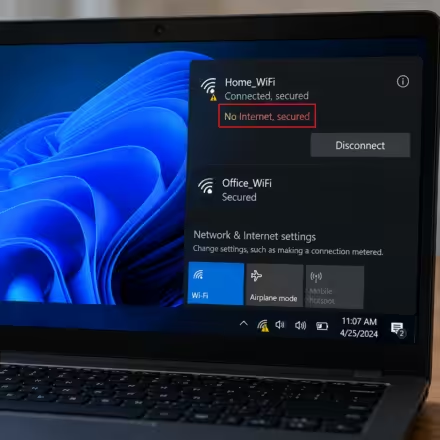
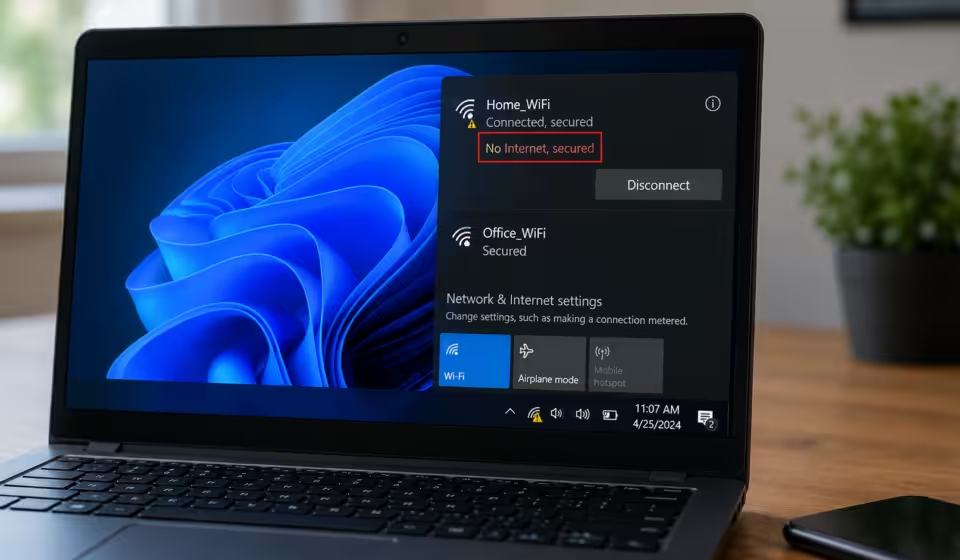
Windows only shows this specific warning under one condition: your device joined the Wi-Fi network fine, but something past that point isn’t working. So don’t waste time messing with Wi-Fi passwords or moving closer to the router. That’s not it.
From most likely to least likely, here’s what’s usually behind it:
- Router or modem stuck in a bad state, this is the culprit more than anything else on this list
- DNS server that’s unreachable or set up wrong
- IP address lease that’s expired or conflicting with another device
- Wi-Fi driver that’s fallen out of sync after a Windows or router update
- A VPN, proxy, or firewall quietly blocking traffic
- An ISP outage, which no amount of clicking around will fix
Fix Priority Table
Skip straight to whichever row matches what you’re seeing instead of reading top to bottom.
| Step | Fix | Try This If |
| 1 | Full router and modem restart (30-second unplug) | You haven’t already, basically always start here |
| 2 | Check for an ISP outage | Another device on the same network is also down |
| 3 | Forget and reconnect the network | It worked yesterday and only this one device is affected |
| 5 | Flush DNS and renew IP address | The restart didn’t fix it and it’s just this one device |
| 6 | Update or roll back the Wi-Fi driver | This started right after a Windows or driver update |
| 9 | Disable VPN, proxy, or third-party firewall | You’re running a VPN or a security suite with its own firewall |
| 10 | Full network reset | You’ve tried everything else and just want a clean slate |
| 14 | Call your ISP | The modem’s WAN light is red or another device confirms the outage |
1. Restart the Router and Modem, Properly
Flipping the power switch off and on doesn’t really restart anything. Pulling the actual cable does. Here’s the difference, and it matters:
- Pull the power cable out of both the modem and the router. The cable, not the switch.
- Leave them unplugged for a full 30 seconds. Not five, not ten, thirty. That’s how long it takes the capacitors to fully drain and your ISP to let go of the old connection.
- Plug the modem in first. Give it a minute or two until the lights settle down and go solid.
- Plug the router back in and let it finish booting before touching anything.
- Reconnect and try loading a page.
This single step fixes more of these than everything else on this page put together. Do it before anything else, even if you’re sure you already tried restarting it.
2. Make Sure It’s Not Just Your ISP
Before you burn twenty minutes in Windows settings, rule this out first. Pull out your phone, kill the Wi-Fi so it’s running on cellular, and check Downdetector for your provider. Or just look at the modem. A red or blinking light next to “Internet” or “WAN” is telling you the problem is between the modem and your ISP, and there’s nothing on your laptop that fixes that.
Another device on the same network also stuck? Stop here. This isn’t your PC’s fault.
3. Forget the Network and Reconnect
The first time you connect to a network, Windows saves a profile for it, password, IP settings, security handshake, all of it. Occasionally that profile gets corrupted, and no amount of restarting fixes a corrupted profile. You have to delete it and let Windows build a new one.
- Settings > Network & Internet > Wi-Fi > Manage known networks.
- Click your network, hit Forget.
- Click the Wi-Fi icon in the taskbar, select your network again, type the password back in.
That’s it. New profile, no leftover corruption.
4. Actually Run the Network Troubleshooter
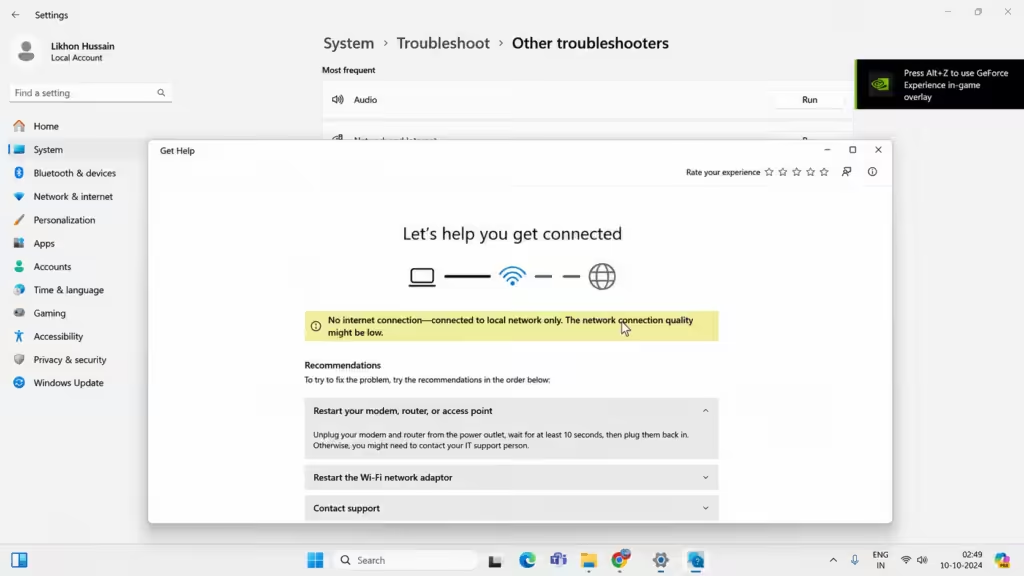
Most people skip this because it feels like a formality. Fair, honestly, it usually is. But every so often it catches a misconfigured adapter setting that would take forever to find manually, so it’s worth the sixty seconds.
- Right-click the Wi-Fi icon in the taskbar, pick Diagnose network problems.
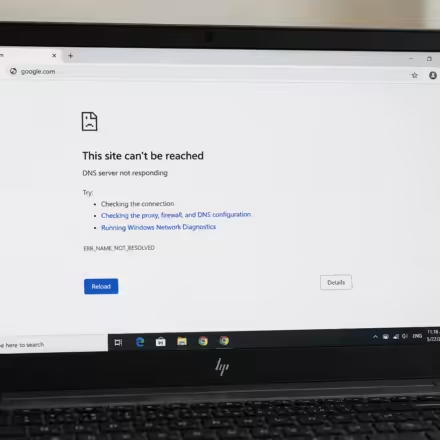
- Let it run. You’ll usually get something like “the device or resource is not responding,” or it’ll call out a DNS issue directly.
- Apply whatever it recommends, even if it seems like a small thing.
5. Flush DNS and Grab a Fresh IP Address
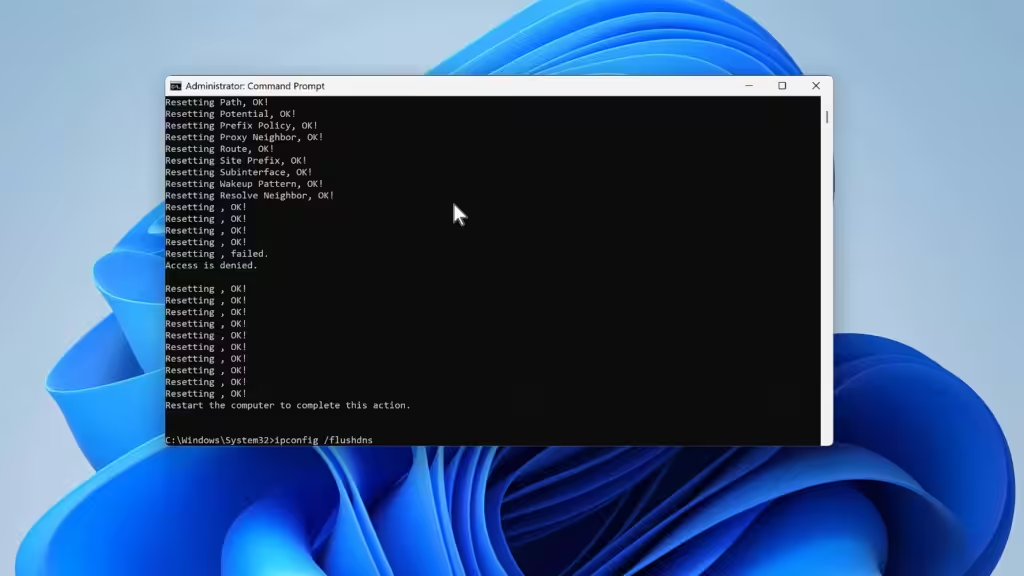
If the router restart didn’t do it, this is next, and it’s the fix I’d bet on second. Open Command Prompt as Administrator (right-click Start, Terminal (Admin)) and run these, in order:
- ipconfig /release
- ipconfig /renew
- ipconfig /flushdns
- netsh winsock reset
Restart the PC once you’ve run all four. The winsock reset specifically won’t take effect until you reboot. What just happened: you dropped the old IP lease, grabbed a new one from the router, wiped out any DNS entries that might’ve been pointing at a dead server, and reset the network stack back to default.
6. Update or Roll Back the Wi-Fi Driver
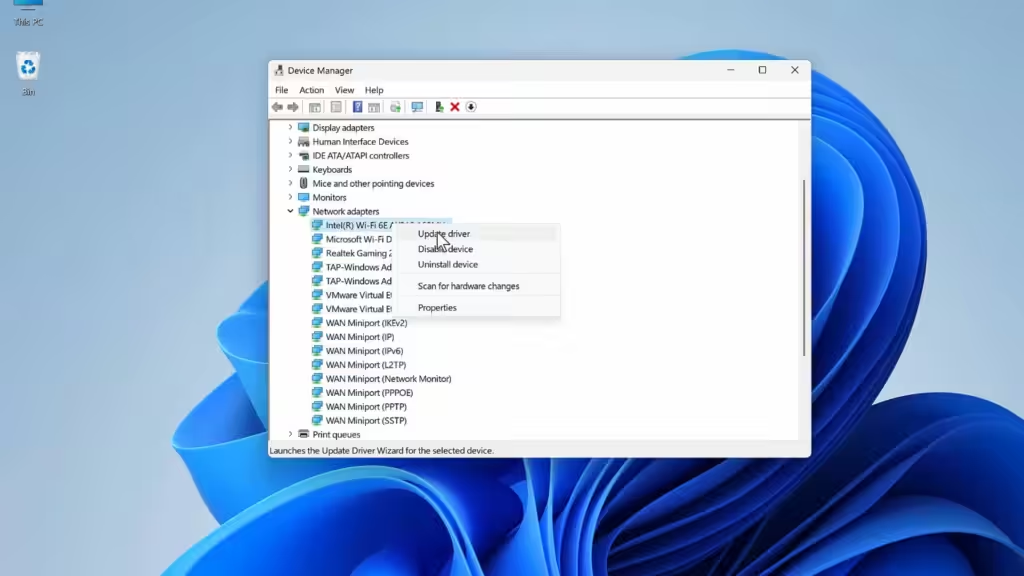
People avoid this step because it sounds like something only IT people should touch. It’s really not that bad, and skipping it means missing a genuinely common cause: a driver that’s a version or two behind where the router’s firmware expects it to be.
- Right-click Start, open Device Manager.
- Expand Network adapters, find the Wi-Fi one (not Bluetooth, easy to grab the wrong one).
- Right-click it, Update driver, Search automatically.
- If this started right after a Windows update and was fine before, do the opposite: Properties > Driver tab > Roll Back Driver.
If Windows tells you the driver’s already up to date but you’re still stuck, go straight to the manufacturer’s website. Windows Update is often a version or two behind what’s actually available.
7. Try Turning Off IPv6
This one’s more of a test than a real fix. Some older routers and ISP networks don’t handle IPv6 cleanly, and the result is a device that looks fully connected while traffic quietly fails in the background.
- Settings > Network & Internet > Wi-Fi > click your network > Hardware properties (or Control Panel > Network Connections > right-click your adapter > Properties).
- Uncheck Internet Protocol Version 6 (TCP/IPv6).
- Hit OK, test the connection.
Fixed it right away? Now you know the real issue is how the router or ISP handles IPv6. Worth checking for a firmware update, or just calling the ISP, rather than leaving it switched off forever.
8. Check for an IP Address Conflict
Two devices grabbing the same IP address happens more than you’d think, especially on older routers with a small DHCP pool, or a house full of smart plugs, cameras, and consoles all fighting for addresses. This one tends to be intermittent. Works fine, then doesn’t, on random devices, no obvious pattern.
- Log into the router’s admin page, usually 192.168.1.1 or 192.168.0.1, and pull up the connected devices list.
- Look for duplicate IPs, or a device count that’s basically maxed out the DHCP pool.
- Reboot the router to force a clean reassignment, or bump up the DHCP pool size if it’s nearly full.
9. Turn Off Your VPN, Proxy, or Firewall for a Minute
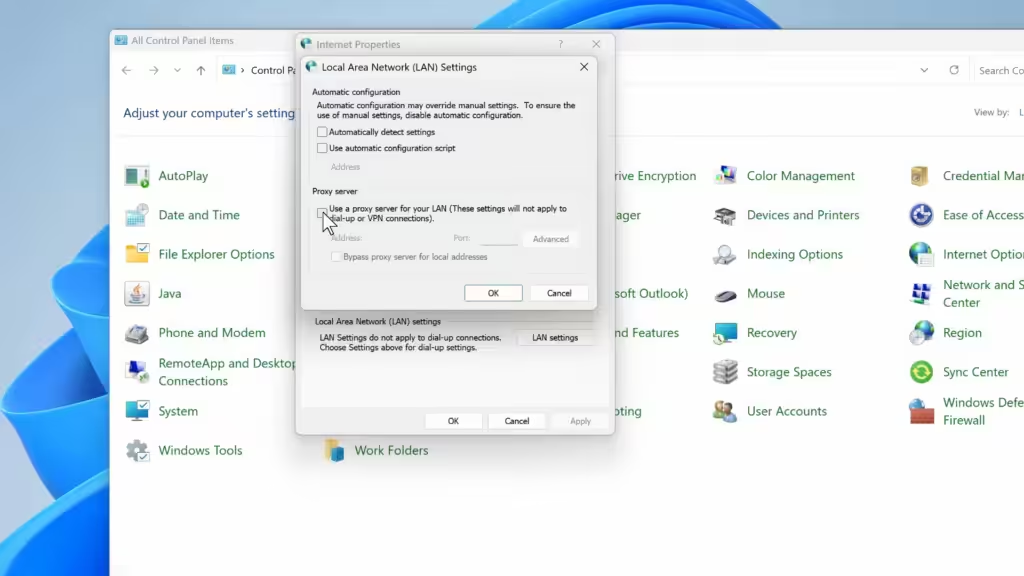
A VPN that half-connected, or a proxy setting you forgot about from months ago, will happily sit there saying “connected” while blocking everything you send out. Check all three of these:
- Fully close the VPN app, don’t just hit disconnect, actually quit it. Then test.
- Settings > Network & Internet > Proxy, make sure “Use a proxy server” is off, unless you set it up on purpose.
- Running third-party antivirus with its own firewall? Turn it off for a minute (not Windows Firewall, the other one), test, then turn it back on.
10. Reset Your Network Settings Completely
Nothing above worked? This is the last resort, and it works because it’s a bit brutal, it reinstalls every network adapter and clears settings that Windows normally hides from you. The tradeoff: every saved Wi-Fi password on the machine disappears with it.
- Settings > Network & Internet > Advanced network settings > Network reset.
- Click Reset now, confirm.
- It restarts on its own. Once it’s back, reconnect to Wi-Fi and type your password back in.
11. Check for MAC Address Filtering
Reset the router recently, or put in a new network card? If MAC filtering is on and the router doesn’t recognize the new address, it blocks the device even though the Wi-Fi handshake goes through fine, which is exactly the confusing symptom you’re dealing with here. Dig into the router’s security or access control settings, find the MAC filter list, and either add the new address or just turn the filter off if you don’t need it.
12. Rule Out Malware or a Trigger-Happy Security Tool
Malware that messes with DNS settings causes this exact symptom. So does a security app you just installed that’s a little too aggressive about filtering network traffic. Run a full scan (Settings > Privacy & security > Windows Security > Virus & threat protection > Scan options > Full scan), and think about whether this started right after you installed something new. That timing usually tells you everything.
13. Test It On a Second Device
Grab your phone or another laptop and connect it to the same network. Also stuck? The problem is the router or the ISP line, stop poking at Windows settings, you’re wasting time. Connects fine? The issue is isolated to the first device, and fixes 5 through 10 above are where you’ll find the answer.
14. When to Stop and Just Call Your ISP
Routers don’t last forever. Somewhere around the three to five year mark, overheating, worn-out capacitors, and firmware bugs on older models start causing exactly this kind of intermittent “connected but no internet” behavior, and there’s no setting on your PC that fixes failing hardware. Call the ISP if:
- The modem’s WAN light is red or still blinking after a proper power cycle
- A second device on the network confirms it’s not just you
- The connection drops on a predictable schedule, which usually points to a line issue on their end
Ask directly whether there’s a known outage or a signal problem on your line. That’s something they can check remotely, and it’s genuinely not something you can figure out from a laptop.
Frequently Asked Questions
Why does my Wi-Fi say connected but there’s no internet?
Your device joined the router fine. The router either isn’t reaching your ISP, or it isn’t handing your device a working IP address and DNS server. A proper router restart and a DNS flush fix most cases without needing to go any further than that.
Does restarting my router actually fix this?
Yes, more often than anything else on this list. A real power cycle, unplugged for a full 30 seconds rather than just flipping the switch, forces the router to renegotiate its connection with the ISP and clears out whatever state it got stuck in.
Why does only one device lose internet while the rest stay connected?
That’s a pretty clear sign the problem is local to that device, a corrupted network profile, an old driver, a bad IP lease, rather than the router or the ISP. Test a second device first before you spend time on the router.
Will a network reset wipe my saved Wi-Fi passwords?
Yes, all of them. Windows’ Network reset reinstalls the adapters and clears every saved Wi-Fi profile, so you’ll be typing passwords back in for every network you use, home included.
How do I tell if it’s my router or my internet provider?
Check the modem’s WAN or Internet light. Solid means it’s reaching the ISP fine, and the fault is probably your router or device. Red, off, or blinking after a full power cycle means the problem is upstream, call the ISP.
Should I just replace the router?
Only after trying the fixes above and confirming with the ISP that the line itself is fine. A router past the four or five year mark with intermittent symptoms is a fair suspect, but it’s worth ruling everything else out first.
Full Overview On Short Paragraph
Restart the router properly first, unplugged for a real 30 seconds, not a quick switch flip. If that doesn’t hold, flush DNS and grab a fresh IP address next, that’s the second-best bet on this whole list. Everything after that is just narrowing down whether it’s your device, your router, or your ISP’s line. Once you know which one, you’re not guessing anymore, you’re just fixing it.